Cyberciti – Elementor template kit for cybersecurity services

Modern and clean template kit for Elementor focused on digital security services, encryption, network security, and IT services

Cyberciti is a modern and clean cybersecurity service element template kit for creating professional, fully functional WordPress websites without writing a single line of code. Cyberciti is fully responsive and retina ready, and comes with various features to offer, such as templates that will be the perfect starting point for network security, cybersecurity, encryption, and any IT service.

This template kit includes over 20 carefully designed templates so you can create your professional website with just one click.

Features:

  • Modern and clean design
  • Over 10 ready-to-use templates
  • Fully responsive design
  • Retina ready
  • Fully customizable
  • Compatibility with multiple browsers: Chrome, Firefox, Safari, Opera

The templates include:

  • Home 01
  • Home 02
  • Services
  • Service details
  • Pricing
  • Review
  • Team
  • Frequently asked questions
  • 404
  • Blog
  • Single post
  • About
  • Contact
  • Heading
  • Footer
  • Global theme style
Cyberciti – Elementor template kit for cybersecurity services is distributed under the GPL license. All resources have been developed by third-party programmers. cheapelementorpro.com is not affiliated with or related to any of them.

Share on your social media

Facebook
Twitter
LinkedIn
Pinterest
WhatsApp

How to install the templates

How to use the template kits (quick guide)

Please note that www.cheapelementorpro.com does not provide support for the installation or configuration of the template kits.

  1. Download the kit file using the Download the Kit for Free Now button on this page and do not unzip it.
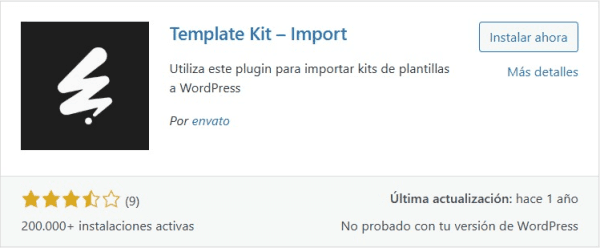
  2. From the WordPress plugin repository, install and activate the “Template Kit – Import” plugin on your website.
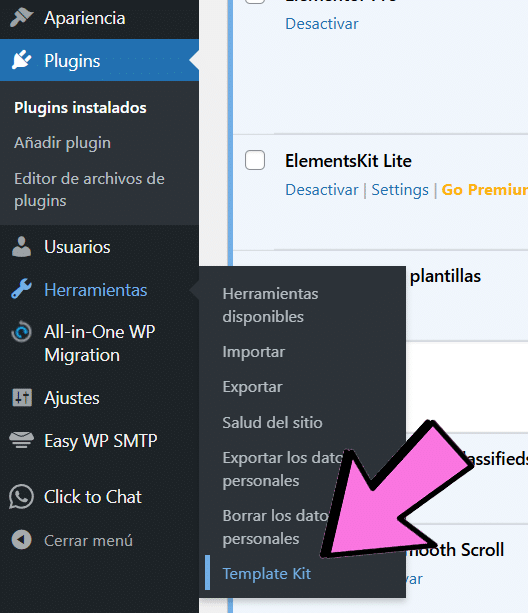
  3. Go to Tools > “Template Kit” and click the “Upload Template Kit ZIP File” link.
  4. Click Import on the Global Kit Styles.
  5. Click Import on the content you want to use, one template at a time. It will be stored in Elementor under Templates > Saved Templates.
  6. Go to Pages, create a new page and click Edit with Elementor.
  7. Click the settings icon to open the page settings and select Elementor Full Width to hide the page title and display the page correctly.
  8. Add a container and click the folder icon to access the My Templates tab. Then import the page or section you want to customize.
  9. If you have Elementor Pro, headers, footers, Blog pages and Shop pages can be customized using the “Theme Builder”. In some template kits, they are activated automatically. In others, you must specify the display conditions—for example: Header > Condition: Entire Site.


Detailed guide:

Blog posts:

Blog content is not included. You will need to add some posts to WordPress before post content appears in the templates.

Can’t find the Envato Elements plugin in the repository?

You need to search for:

“envato template kit – import“

To access the section where you need to upload the template kit:

Over 70 free template kits

Download "Cyberciti – Elementor template kit for cybersecurity services" for free when you order an Elementor Pro license

License activated on your WP installation MCP features All 86 Widgets included Dynamic functions Design tools for WooCommerce Popups