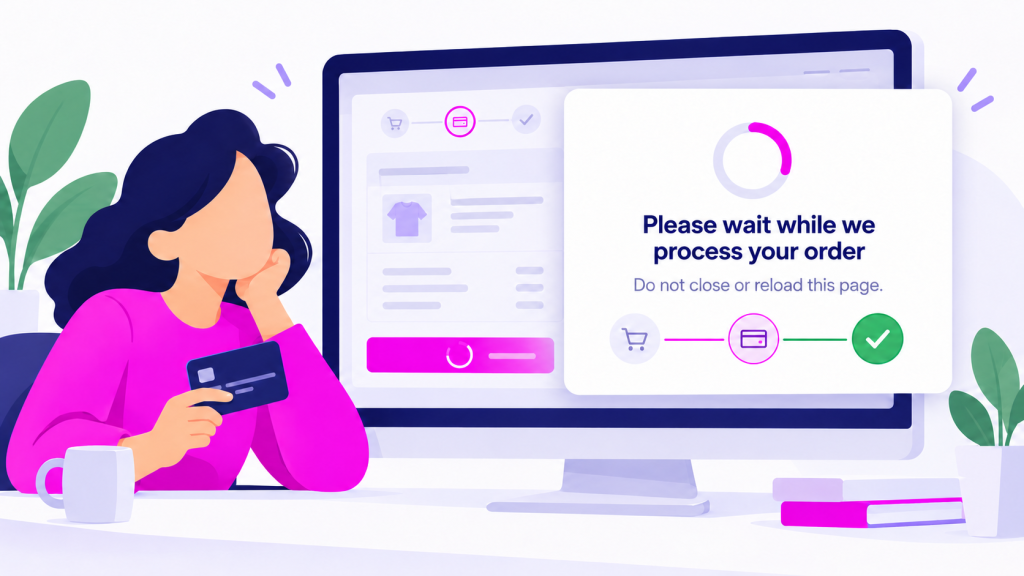
When reviewing Analytics, it is common to find many visits to the checkout page but considerably fewer visits to the order confirmation page. There can be several reasons for this, but one of them is particularly easy to prevent: the customer does not know whether WooCommerce is processing the order correctly.
Some payment gateways need several seconds to validate the payment and create the order. During that time, the button keeps loading, but WooCommerce does not always provide a clear explanation. The customer may think the page has frozen, click the button again, reload it or close it before the process is complete.
In this tutorial, you will learn how to display a message while WooCommerce processes an order, telling the customer to wait and not reload the page.
When a store takes a few seconds to complete an order, the lack of information creates uncertainty. This is especially problematic for purchases made over slow connections or when the payment gateway needs to communicate with external services.
A message like this makes it clear that the process is still running:
Please wait while we process your order
Do not close or reload this page.
The notice does not make WooCommerce process the payment faster, but it improves the shopping experience and reduces the chance of the customer accidentally interrupting the order.
The following code displays an overlay after the customer clicks the button to place the order.
					/**
 * Displays a message while WooCommerce processes the order.
 *
 * The message only appears when the form is valid.
 *
 * Compatible with:
 * - WooCommerce Checkout Blocks
 * - Classic WooCommerce checkout
 */

add_action( 'wp_footer', function () {

	// Load only on the checkout page.
	if (
		! function_exists( 'is_checkout' ) ||
		! is_checkout() ||
		is_order_received_page()
	) {
		return;
	}
	?>

	<div
		id="order-processing-message"
		aria-hidden="true"
	>
		<div class="order-processing-box">

			<div class="order-processing-spinner"></div>

			<h3>
				<!-- You can change this title -->
				Please wait while we process your order
			</h3>

			<p>
				<!-- You can change this message -->
				Do not reload or close this page.
			</p>

		</div>
	</div>

	<style>

		/* Layer covering the entire screen */
		#order-processing-message {
			position: fixed;
			inset: 0;
			z-index: 999999;
			display: flex;
			align-items: center;
			justify-content: center;
			padding: 20px;
			background: rgba(0, 0, 0, 0.45);
			opacity: 0;
			visibility: hidden;
			pointer-events: none;
			transition:
				opacity 0.2s ease,
				visibility 0.2s ease;
		}

		#order-processing-message.show {
			opacity: 1;
			visibility: visible;
			pointer-events: auto;
		}

		/* Message box */
		.order-processing-box {
			width: 100%;
			max-width: 440px;
			padding: 32px 24px;
			border-radius: 10px;
			background: #ffffff;
			color: #222222;
			text-align: center;
			box-shadow: 0 12px 35px rgba(0, 0, 0, 0.18);
		}

		.order-processing-box h3 {
			margin: 0 0 10px;
			font-size: 20px;
			font-weight: 600;
			line-height: 1.4;
		}

		.order-processing-box p {
			margin: 0;
			color: #666666;
			font-size: 15px;
			line-height: 1.5;
		}

		/* Loading indicator */
		.order-processing-spinner {
			width: 36px;
			height: 36px;
			margin: 0 auto 20px;
			border: 4px solid #dddddd;
			border-top-color: #555555;
			border-radius: 50%;
			animation: order-processing-spin 0.8s linear infinite;
		}

		@keyframes order-processing-spin {
			to {
				transform: rotate(360deg);
			}
		}

	</style>

	<script>
	(function () {

		const overlay = document.getElementById(
			'order-processing-message'
		);

		if (!overlay) {
			return;
		}

		let safetyTimer;

		/**
		 * Checks whether WooCommerce has found any errors.
		 */
		function checkoutHasErrors() {

			return Boolean(
				document.querySelector(
					/*
					 * Required or invalid HTML fields.
					 * Includes the terms checkbox.
					 */
					'.wc-block-checkout :invalid,' +
					'form.checkout :invalid,' +

					/*
					 * Fields marked as invalid
					 * through accessibility attributes.
					 */
					'.wc-block-checkout [aria-invalid="true"],' +
					'form.checkout [aria-invalid="true"],' +

					/*
					 * Checkout Blocks errors.
					 */
					'.wc-block-components-validation-error,' +
					'.wc-block-components-notice-banner.is-error,' +
					'.wc-block-store-notice.is-error,' +

					/*
					 * Classic checkout errors.
					 */
					'.woocommerce-error'
				)
			);
		}

		/**
		 * Show the notice.
		 */
		function showProcessingMessage() {

			overlay.classList.add('show');
			overlay.setAttribute('aria-hidden', 'false');

			/*
			 * Safety measure:
			 * if WooCommerce does not respond, the notice will close
			 * automatically after 60 seconds.
			 */
			clearTimeout(safetyTimer);

			safetyTimer = setTimeout(
				hideProcessingMessage,
				60000
			);
		}

		/**
		 * Hide the notice.
		 */
		function hideProcessingMessage() {

			overlay.classList.remove('show');
			overlay.setAttribute('aria-hidden', 'true');

			clearTimeout(safetyTimer);
		}

		/**
		 * Detect the place order button.
		 */
		document.addEventListener(
			'click',
			function (event) {

				const button = event.target.closest(
					'.wc-block-components-checkout-place-order-button, #place_order'
				);

				if (!button || button.disabled) {
					return;
				}

				/*
				 * Wait for WooCommerce to validate the fields.
				 *
				 * If the terms are missing or a field is
				 * invalid, WooCommerce will display the error
				 * during this interval.
				 */
				setTimeout(function () {

					if (checkoutHasErrors()) {
						hideProcessingMessage();
						return;
					}

					showProcessingMessage();

				}, 400);

			},
			true
		);

		/**
		 * If WooCommerce displays an error afterwards,
		 * hide the notice immediately.
		 */
		const observer = new MutationObserver(function () {

			if (checkoutHasErrors()) {
				hideProcessingMessage();
			}

		});

		observer.observe(
			document.body,
			{
				childList: true,
				subtree: true,
				attributes: true,
				attributeFilter: [
					'aria-invalid',
					'class'
				]
			}
		);

		/**
		 * Hide the notice when returning with the browser
		 * Back button.
		 */
		window.addEventListener(
			'pageshow',
			hideProcessingMessage
		);

	})();
	</script>

	<?php
}, 100 );
The snippet works with both WooCommerce Checkout Blocks and the classic checkout. When processing begins, it displays an overlay with a loading indicator and a message for the customer.
If WooCommerce detects an incomplete field, unaccepted terms or any other validation error, the notice automatically disappears so the customer can correct the information.
You can install the snippet with a code snippet plugin such as Code Snippets, without directly modifying your theme files.
Create a new snippet, paste the complete code, save the changes and activate it so that it runs on the front end of the website. If you use another method to add custom PHP, make sure the code is not loaded only in the administration area.
Always place a test order before using it on a live store.
After clicking the payment button, the customer will see the overlay while WooCommerce creates and processes the order. During this time, they are asked not to close or reload the page.
If the order is completed successfully, WooCommerce will redirect the customer to the confirmation page. If an error occurs, the notice will close so they can review the checkout and try again.
This behaviour helps prevent repeated clicks and inspires greater confidence during one of the most sensitive stages of an online purchase.
Within the snippet itself, you can easily change the title, text and colours to match your store design. You do not need to alter how it works to make these visual changes.
Use a short, reassuring message. The aim is for the customer to understand immediately that the order is being processed and that the page should remain open.
Open the store in an incognito window, add a product to the cart and complete the checkout as a customer would. When you click the button to place the order, the notice should appear and remain visible until WooCommerce displays the confirmation.
You should also test the form by leaving a required field empty or not accepting the terms. In that case, the notice should close so the error can be corrected.
Finally, check the process on both desktop and mobile and, if your store offers several gateways, test each one.
Not every checkout abandonment has a simple technical solution. However, when uncertainty during processing is the problem, a clear message can make an important difference.
Displaying a message while WooCommerce processes an order does not reduce the actual waiting time, but it improves how the process is perceived. The customer knows the store is working, understands that they need to wait and has fewer reasons to close or reload the page.
It is a small change, compatible with the main WooCommerce checkout types and especially useful in stores where payments take several seconds to complete.
Yes. The code is designed to detect both the WooCommerce Checkout Blocks button and the classic checkout button. Before using it on a live store, it is advisable to place a test order with your website’s specific configuration.
No. The snippet does not speed up the server or the payment gateway. Its purpose is to let customers know that their order is being processed, reduce uncertainty and prevent them from reloading the page or clicking the button repeatedly while they wait.
The code waits for WooCommerce to validate the form. If required information is missing, the payment method is invalid or the terms have not been accepted, the notice is hidden so the customer can correct the error before placing the order again.
Yes. You can change the title, secondary text, background, window, typography and loading indicator colour. The main areas are marked with comments so you can adapt the notice to your store’s design.
No. You can install it using the free Code Snippets plugin without editing your theme files. You can also add it to the functions.php file of a child theme if you prefer to manage the code manually.
The notice does not depend directly on a specific gateway, so it can work with card payments, PayPal, bank transfers and other methods. However, some gateways use their own redirects or validation processes, so it is advisable to test every available payment method before publishing the changes.